> ## Documentation Index
> Fetch the complete documentation index at: https://docs.awardforce.com/llms.txt
> Use this file to discover all available pages before exploring further.
# API keys management
> Generate, edit, and revoke Award Force API keys.
## API key scopes
API scopes allow you to restrict access for third parties using an API key. Use a scope to protect your and your entrants' data by limiting what third parties can access.
You can apply one of the following scopes to any API key:
* **Read only** - Use for `GET` operations, restricted to viewing data associated with the endpoint.
* **Read / Write** - Use for `GET`, `POST`, `PUT`, `PATCH`, and `DELETE` operations, covering create, update, and delete actions on data associated with the endpoint (set by default).
## Manage API keys
### Generate a new API key
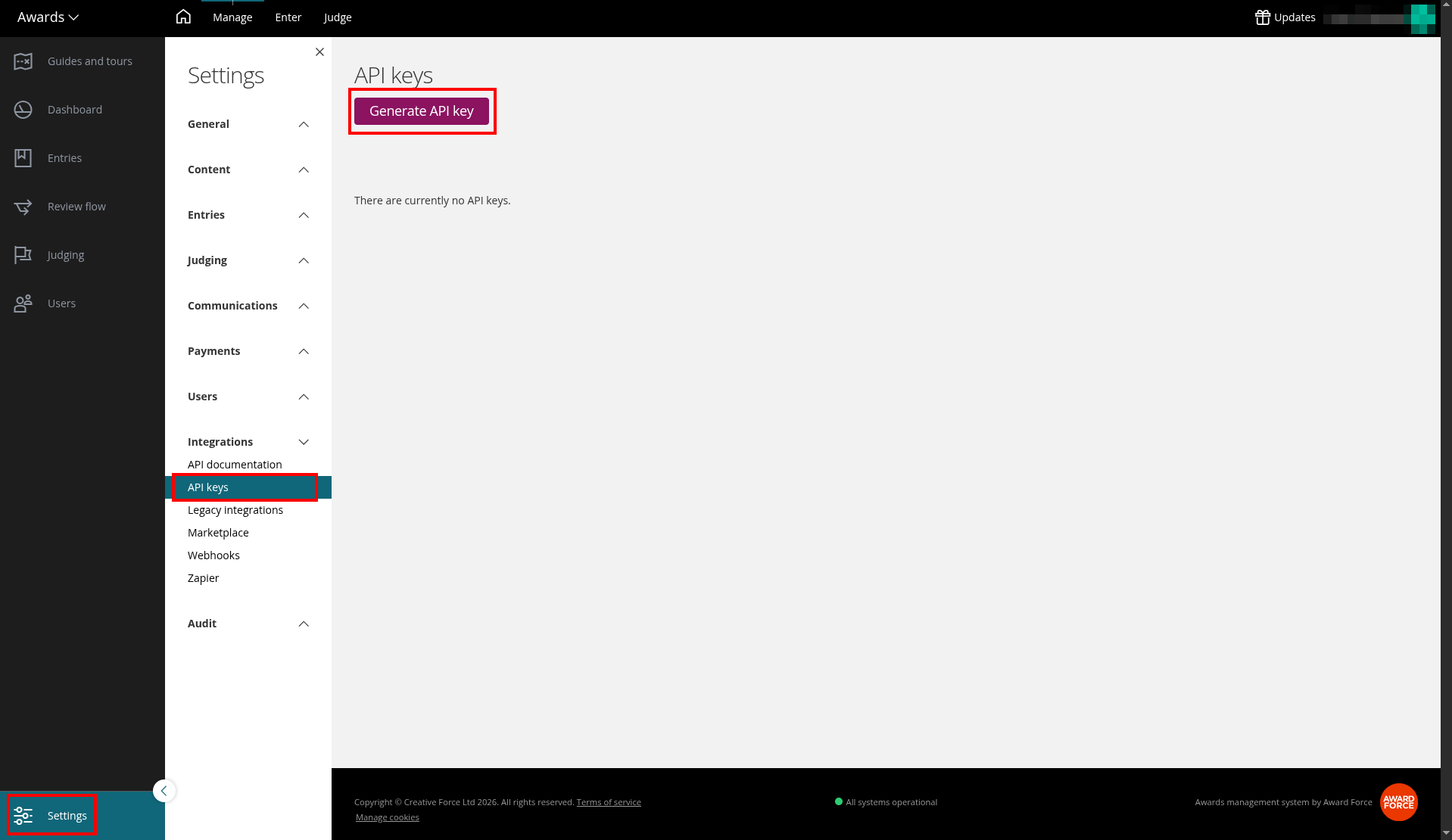
Navigate to *Settings > Integrations > API Keys*, then click on **Generate API Key**:
 Use a clear name or purpose so you can identify which integration a key belongs to later, especially when managing several keys.
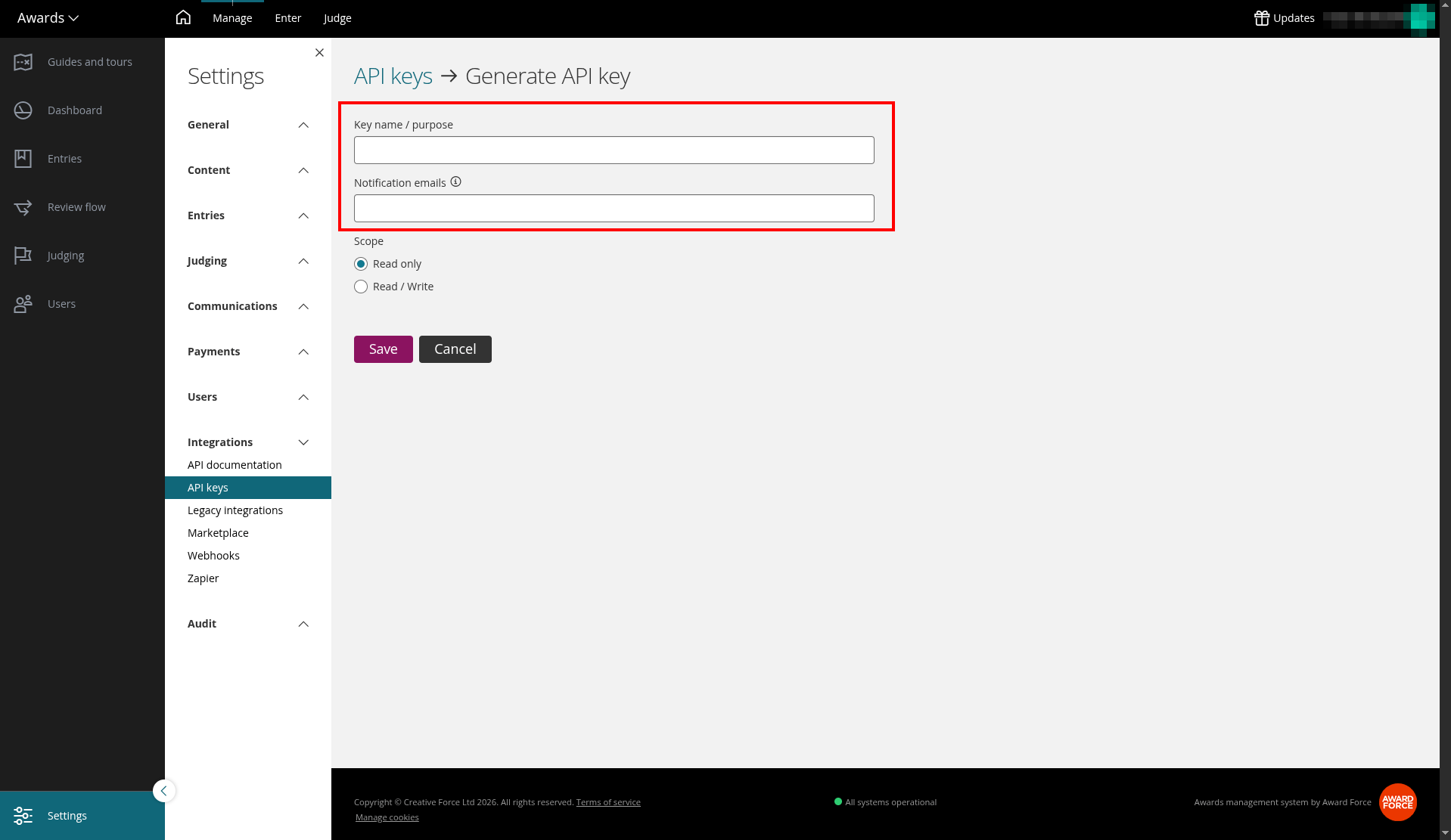 Select **Read only** for `GET` operations only, or **Read / Write** for full access (`GET`, `POST`, `PUT`, `PATCH`, `DELETE`).
### Update an existing API key
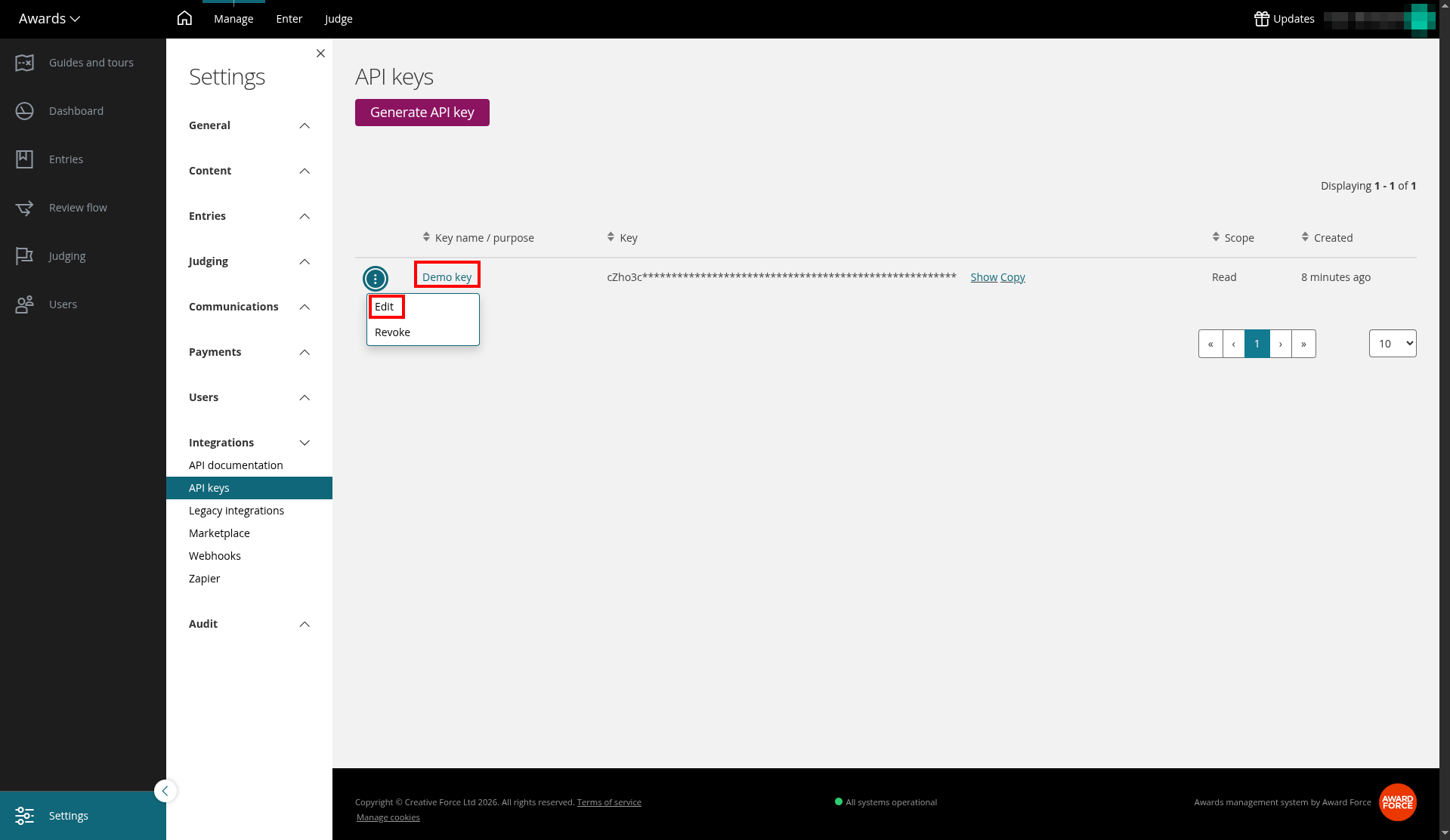
To update an existing API key, go to *Settings > Integrations > API Keys*, then click on the name of API keyname, or open the overflow action menu and click **Edit**.
Select **Read only** for `GET` operations only, or **Read / Write** for full access (`GET`, `POST`, `PUT`, `PATCH`, `DELETE`).
### Update an existing API key
To update an existing API key, go to *Settings > Integrations > API Keys*, then click on the name of API keyname, or open the overflow action menu and click **Edit**.
 ### Revoke an existing API key
**Revoking an API key is permanent. Any integration using the key immediately loses access, and you cannot undo this action.**
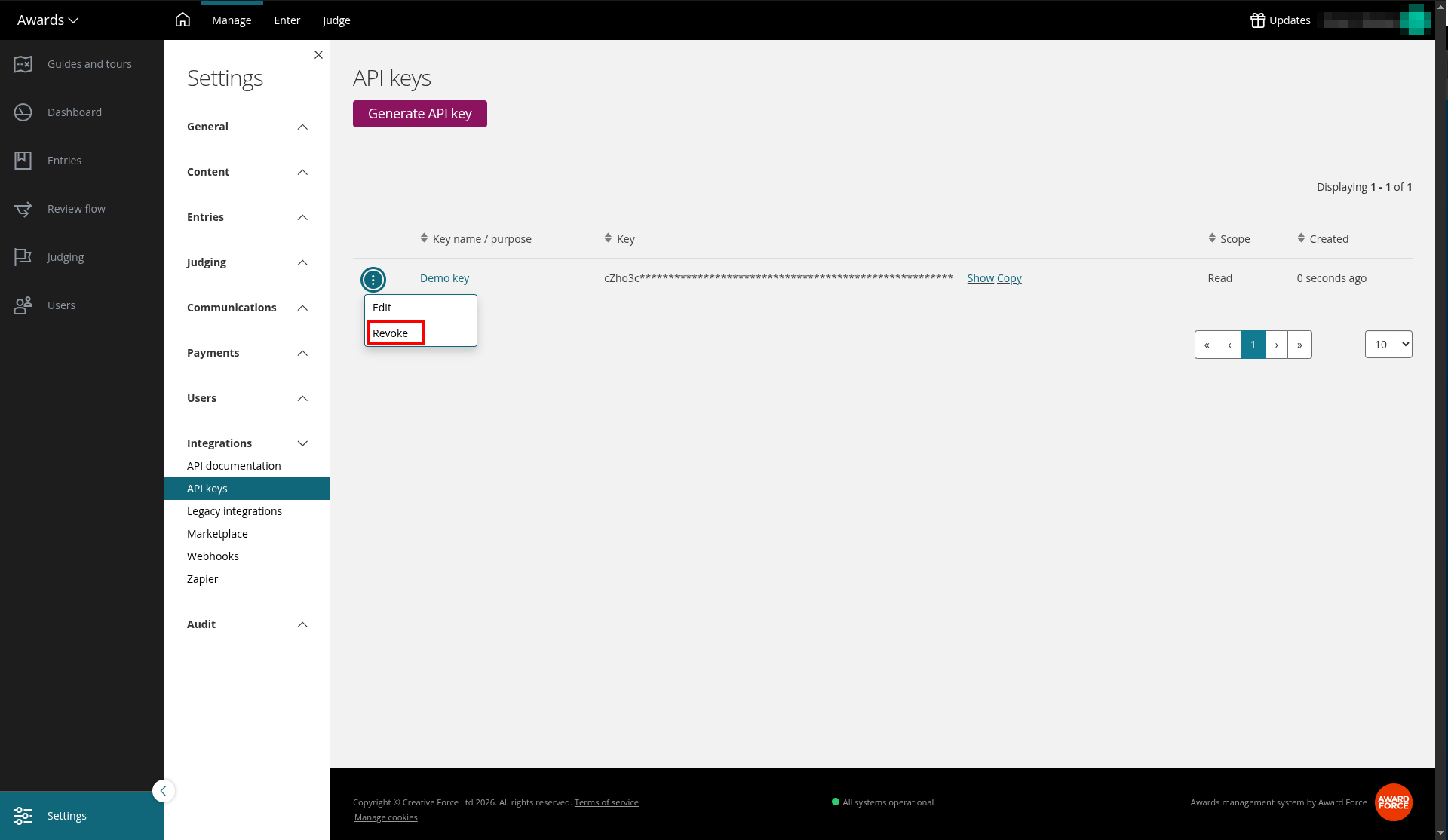
To revoke an existing API key, go to *Settings > Integrations > API Keys*, open the overflow action menu for the key, click **Revoke**, then confirm by clicking **OK**.
### Revoke an existing API key
**Revoking an API key is permanent. Any integration using the key immediately loses access, and you cannot undo this action.**
To revoke an existing API key, go to *Settings > Integrations > API Keys*, open the overflow action menu for the key, click **Revoke**, then confirm by clicking **OK**.